
How to use the QMatrix
Using the QMatrix will allow you to:
- Compare the project requirements with your company’s PQRs, WPSs and Welder Qualfications instantly.
- Select the proper PQRs, WPSs and Welders by searching through base metals, filler metals, thicknesses, diameters, etc
- Avoid overlapping certificates
- Ensure the qualification of your company from the kick-off of the project
1. Navigate to https://notes.apps.indusuite.com/pqrs
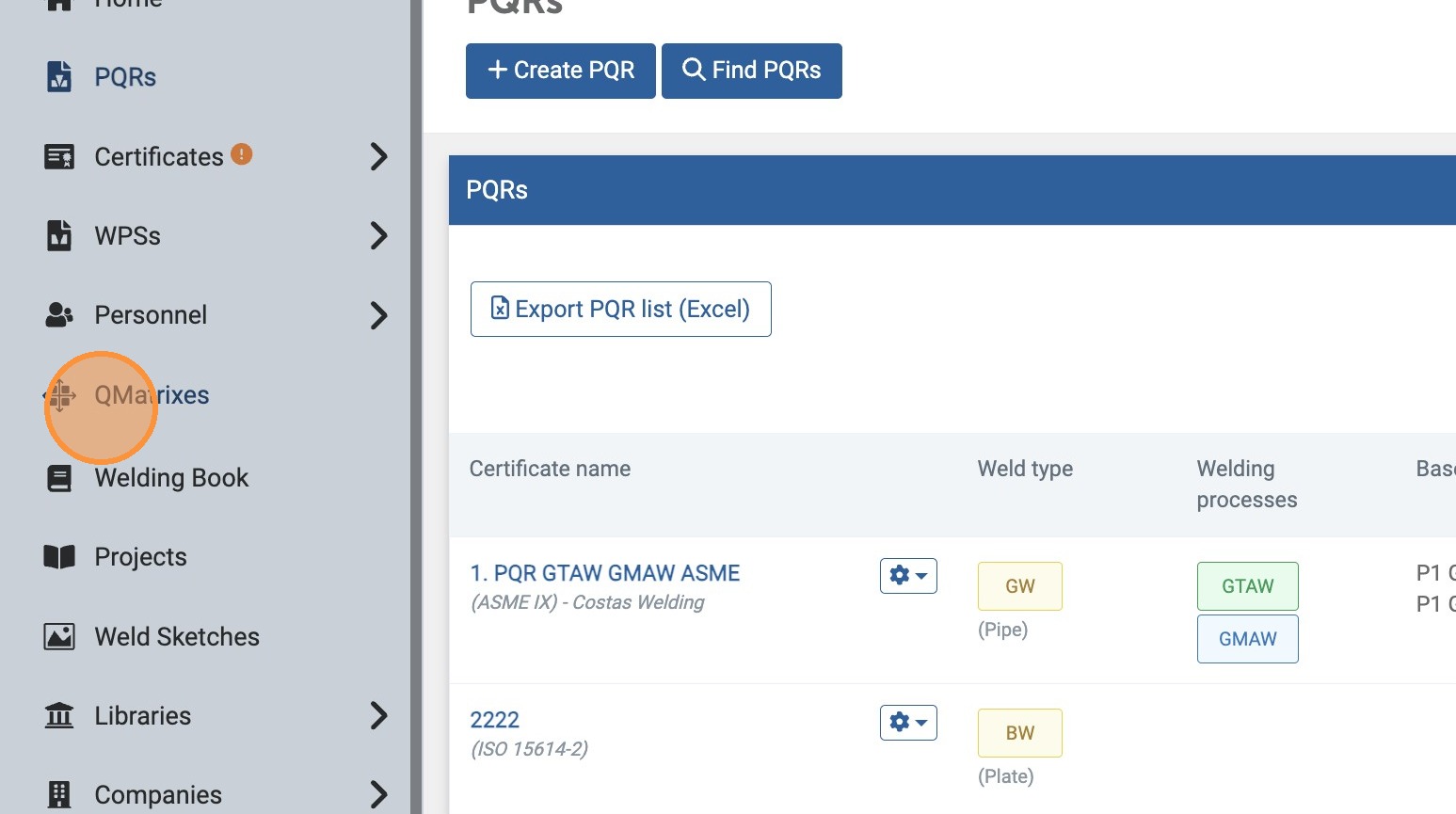
2. Click "QMatrixes"

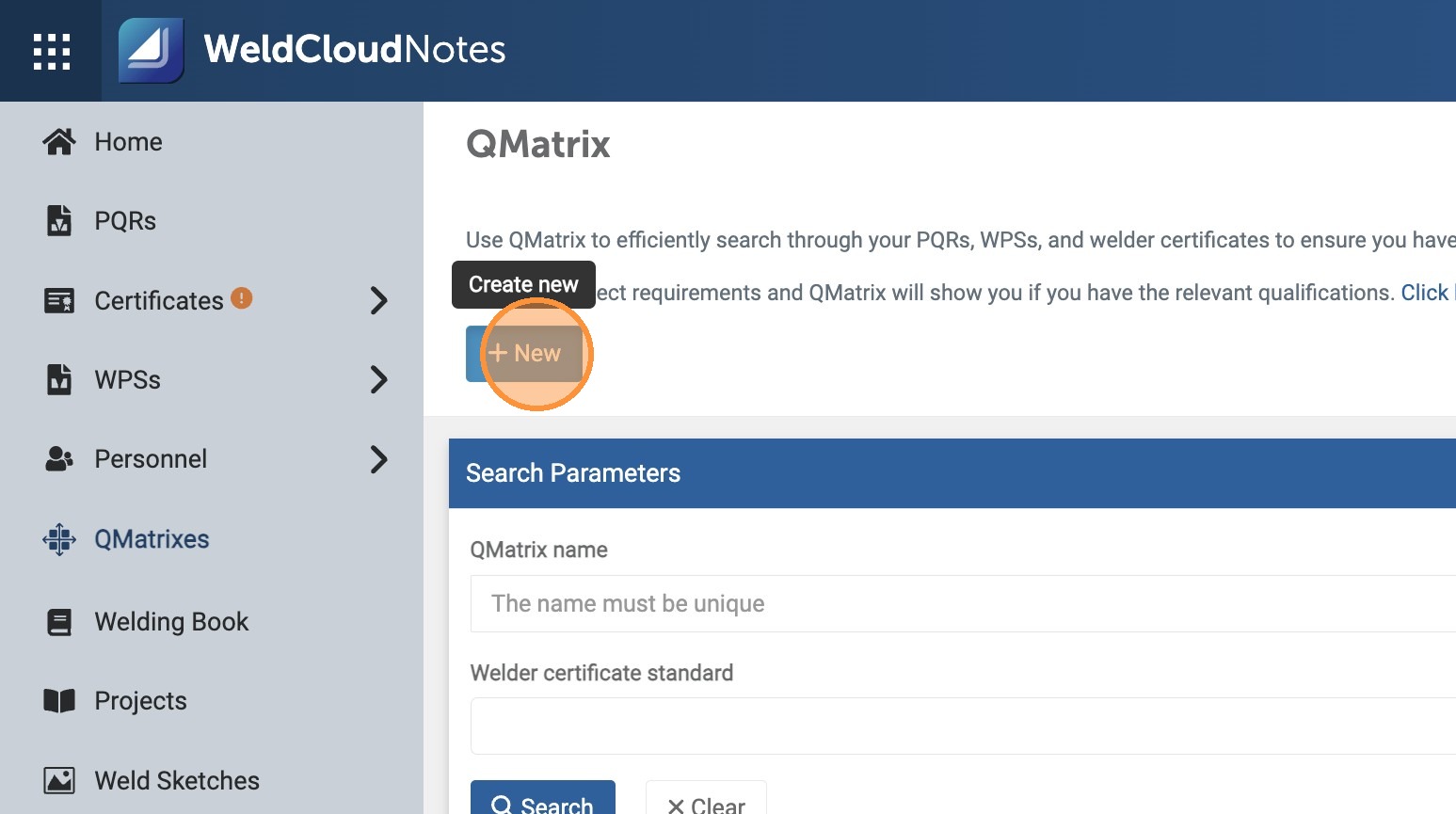
3. Click "New"...

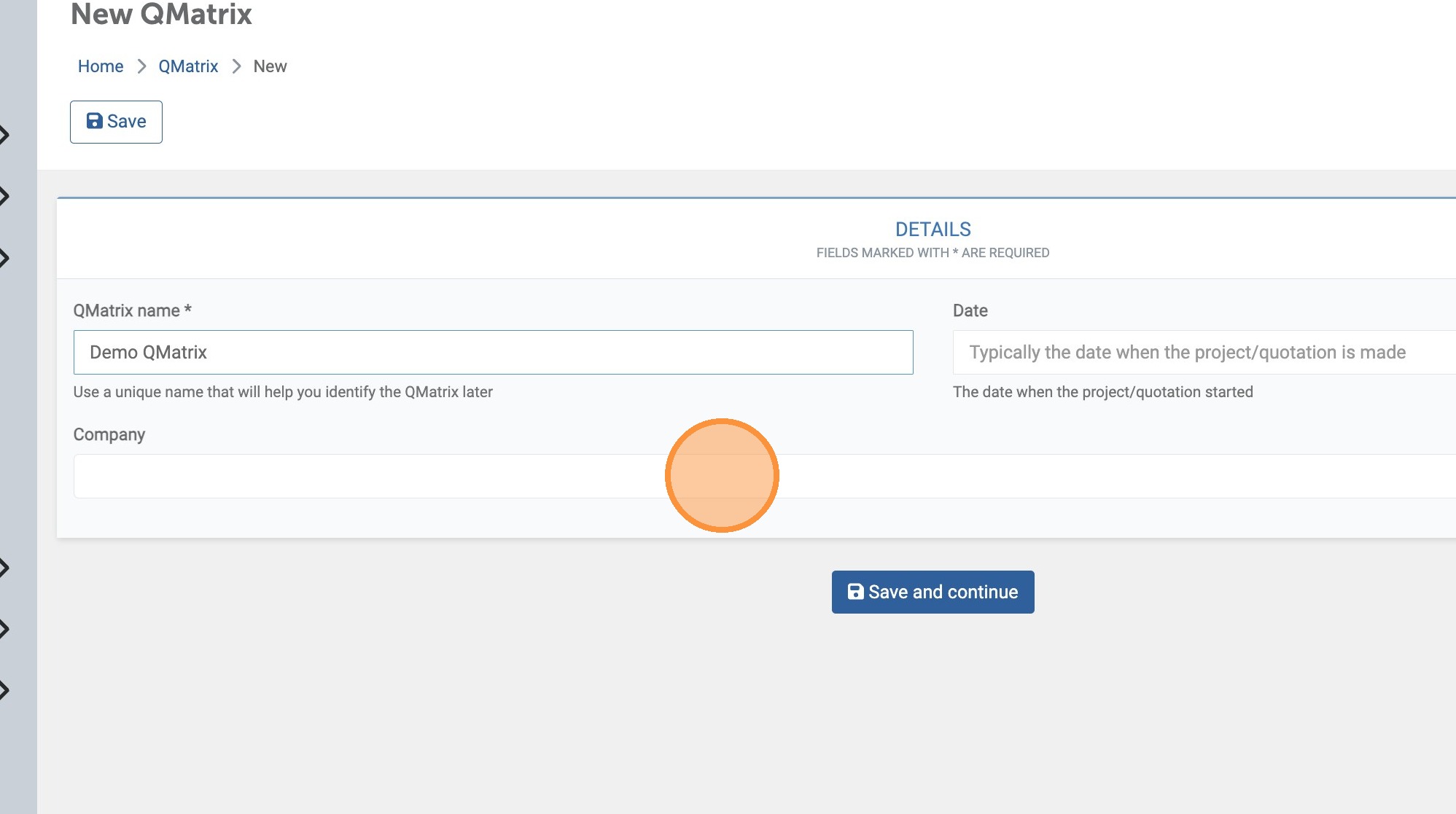
4. ... and enter a name for your QMatrix.

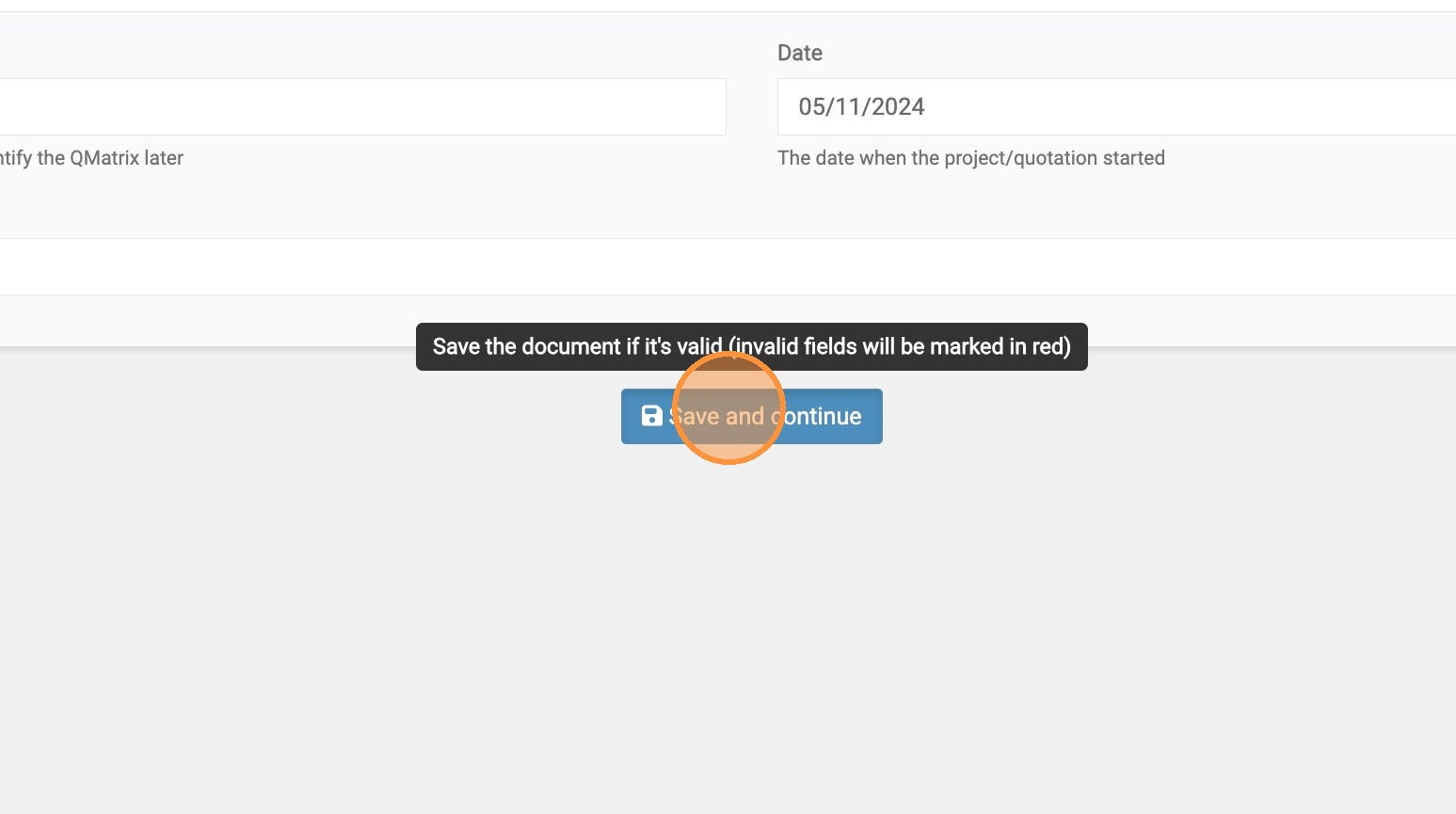
5. Once finished, click "Save and continue".

6. To select the Pipes you're going to weld in your Project, search and then ADD them to your Matrix.

7. Click "Plate Pieces"


8. Use the same procedure to select the Plates for your Project.

9. Once you're ready, Save your QMatrix and...

10. ... move on to the PQR Matrix tab.


11. Start filtering by choosing the Standard you'll be working on your Project, and then enter some more details.
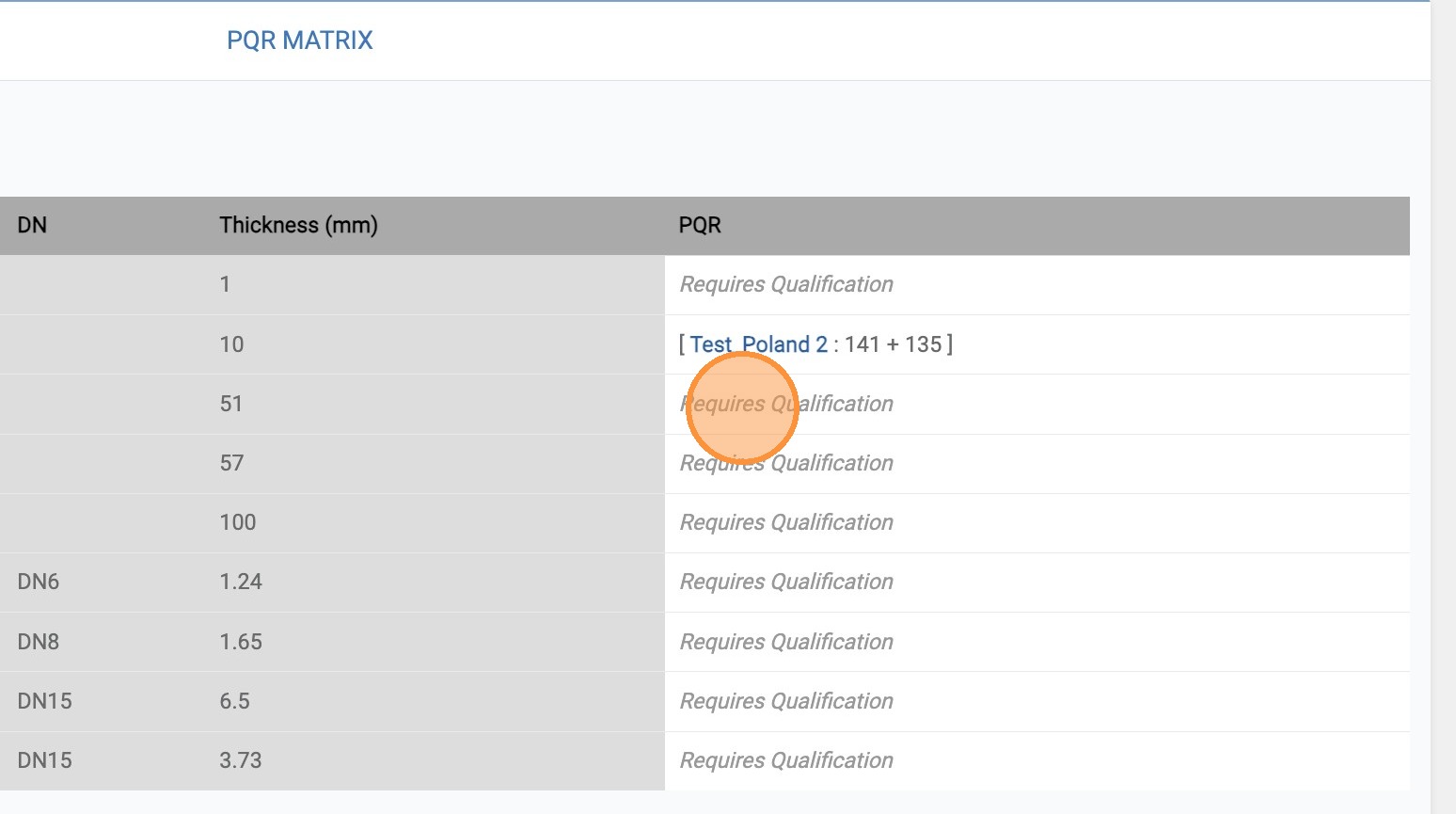
When you have all the filters set, click "Preview"...

12. The results will show you if you are Qualified for your Project, or need additional Qualifications.



13. Move over to the "Certificate Matrix" and follow the same procedure.
At the end, you'll know if your Welders have the necessary Qualifications.

14. Last, but not least, click "WPS Matrix" and check if you need to create new WPS's.

Instructions
- Navigate to https://notes.apps.indusuite.com/pqrs
- Click "QMatrixes"
- Click "New"...
- and enter a name for your QMatrix.
- Once finished, click "Save and continue".
- To select the Pipes you're going to weld in your Project, search and then ADD them to your Matrix.

- Click "Plate Pieces"
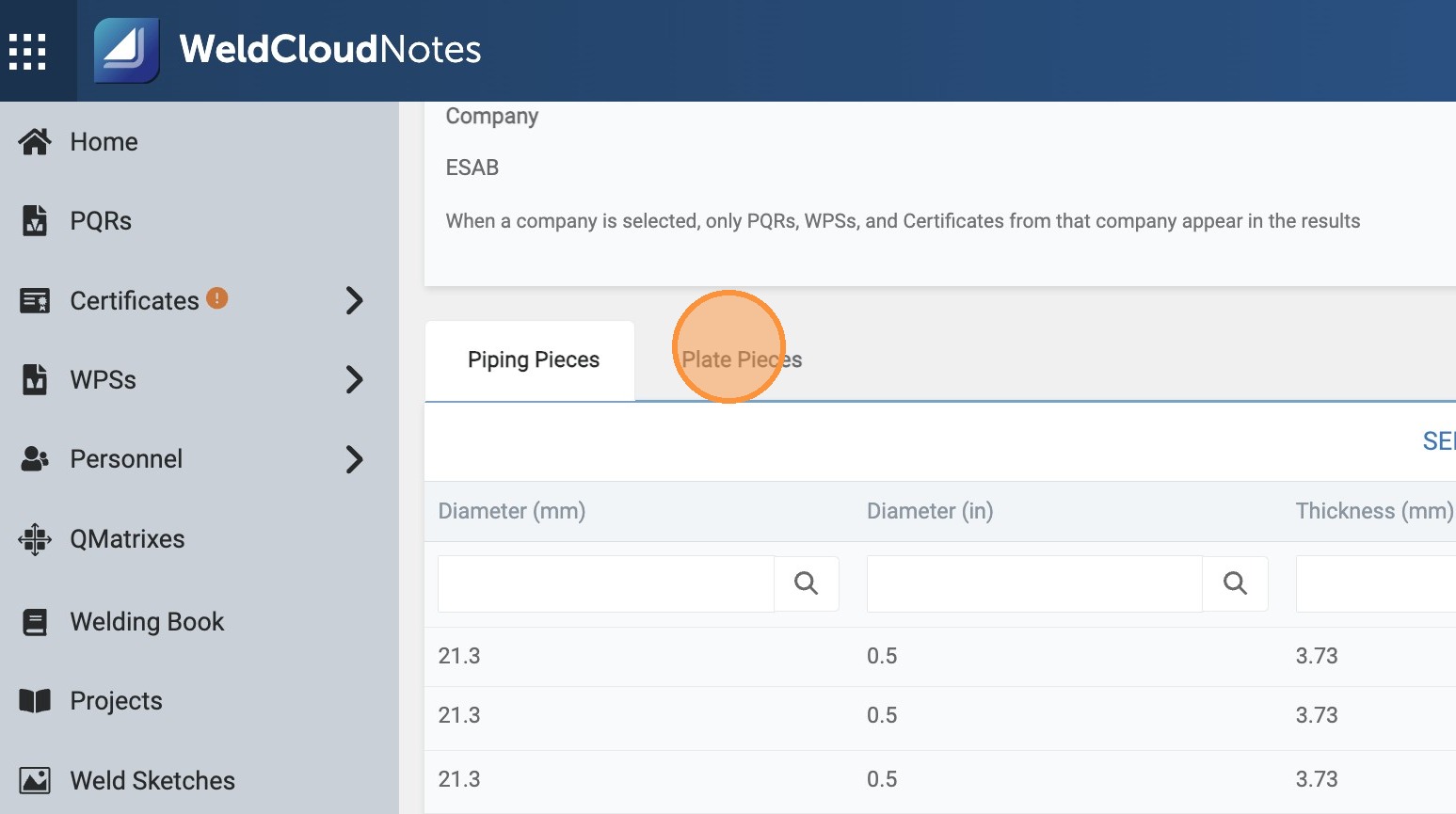
- Use the same procedure to select the Plates for your Project.
- Once you're ready, Save your QMatrix and...
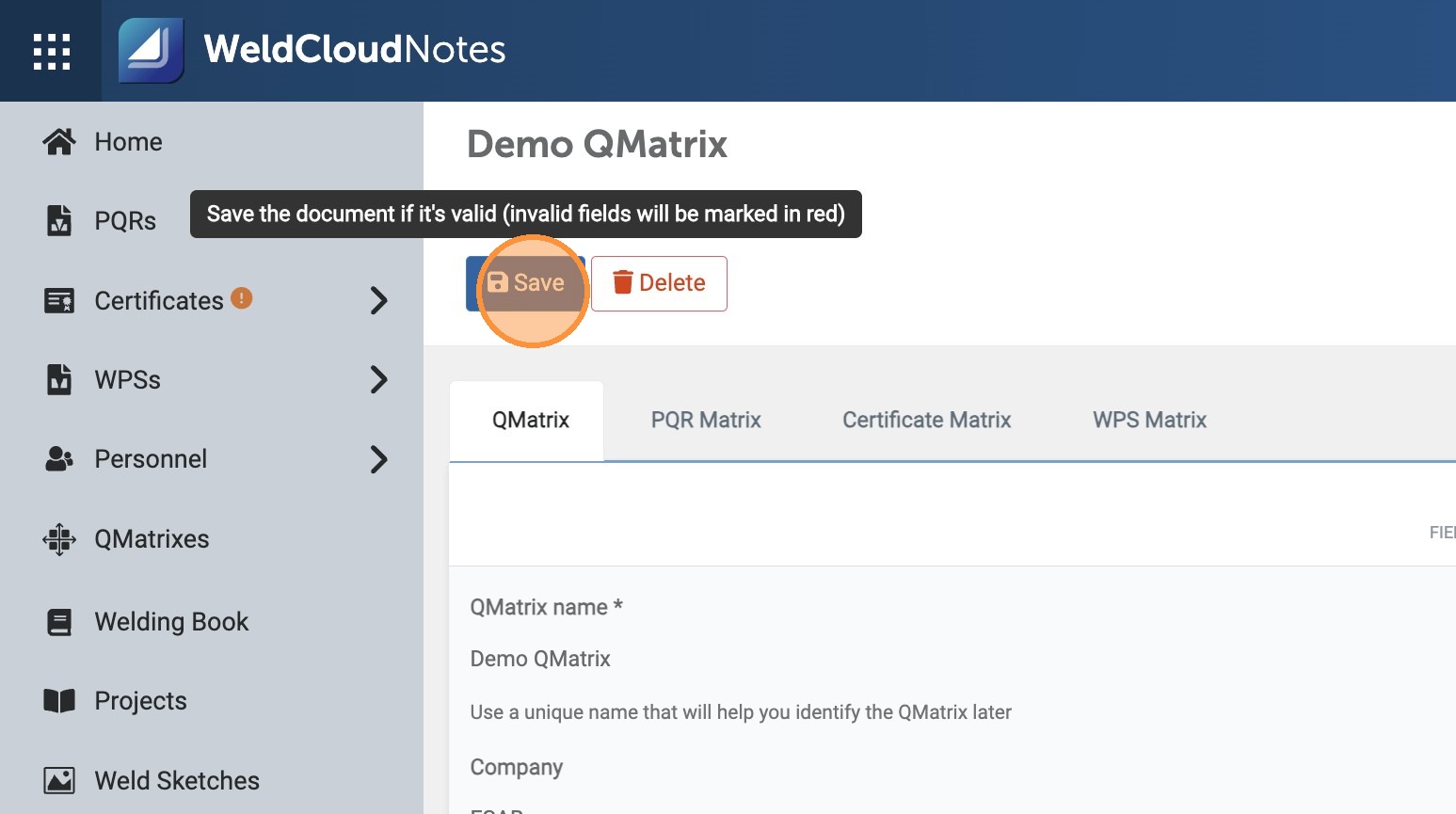
- ... move on to the PQR Matrix tab.
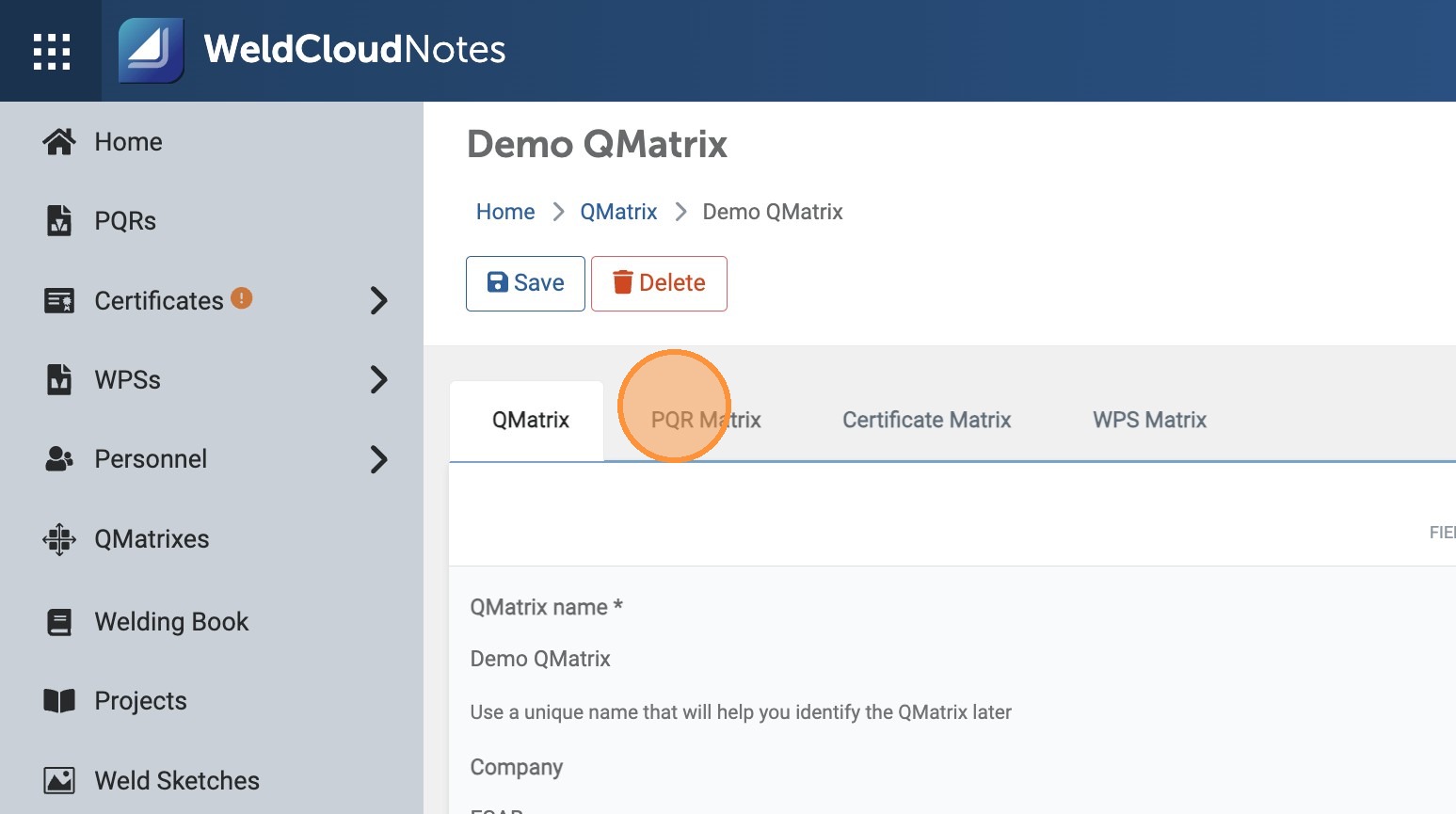
- Start filtering by choosing the Standard you'll be working on your Project, and then enter some more details.\
When you have all the filters set, click "Preview"...
- The results will show you if you are Qualified for your Project, or need additional Qualifications.
- Move over to the "Certificate Matrix" and follow the same procedure.\
At the end, you'll know if your Welders have the necessary Qualifications.
- Last, but not least, click "WPS Matrix" and check if you need to create new WPS's.
Updated on: 17/07/2026
Thank you!